Track
Price history by variant
Each product variant is monitored independently, so a size, colour or other option is not treated as though it had the same price history as every other variant.
Omnibus Price History automatically records price history and shows the relevant lowest price from the preceding 30 days on Shopify product pages. This guide takes your team from installation to a confident promotion launch - without spreadsheets or theme development for the standard setup.
What the app does
The app tracks prices for individual variants, uses the appropriate price for the shopper’s Shopify Market, and makes that historical price available in your storefront. It is designed to support the EU Omnibus price-transparency requirement when a discount is presented; your business remains responsible for its own legal and promotional decisions.
Track
Each product variant is monitored independently, so a size, colour or other option is not treated as though it had the same price history as every other variant.
Calculate
The app maintains the historical value needed for the rolling 30-day window and updates storefront data after relevant price changes.
Show
Add a theme app block next to your price. Customers see the right context where they make the purchase decision.
The complete journey
Most stores need only this sequence. The app then continues working in the background while you manage normal Shopify prices and discounts.
Step 1 · Install and start tracking
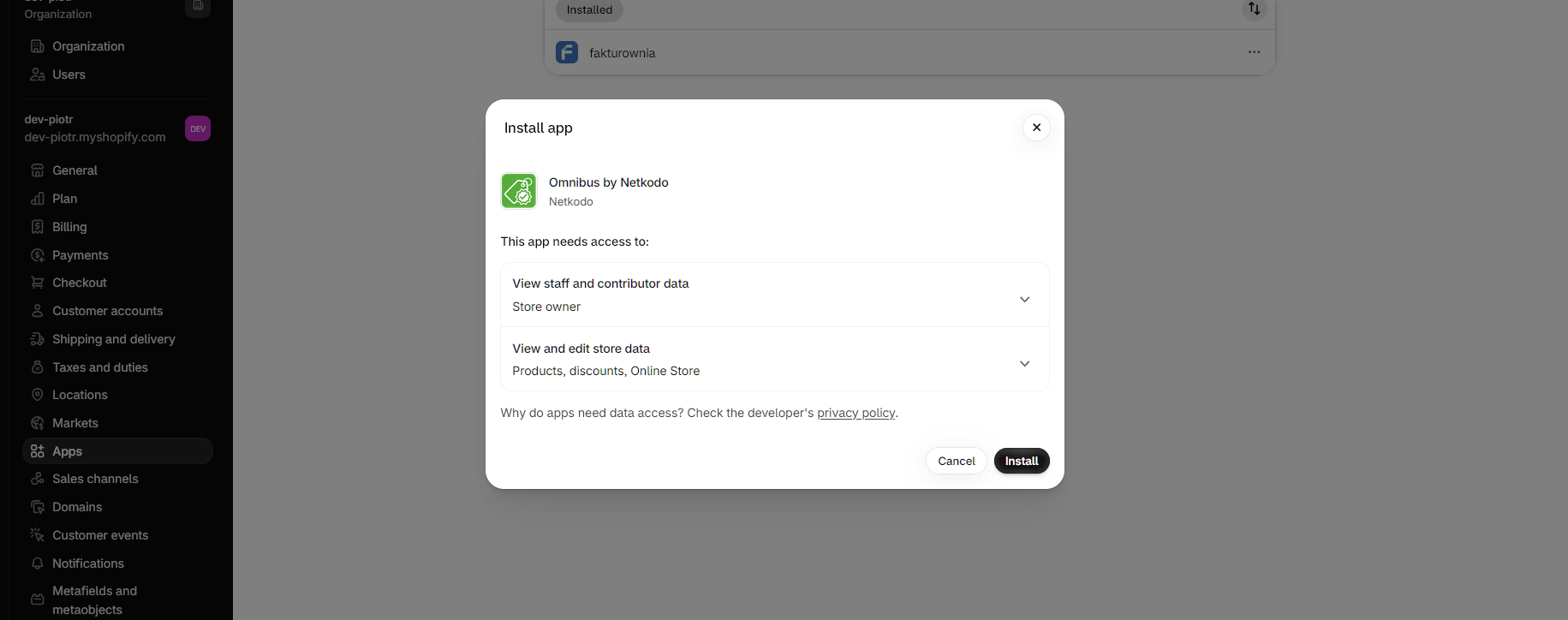
Install Omnibus Price History from the Shopify App Store, select the store, and approve the subscription in Shopify when prompted. The current app listing provides a 14-day trial; the plan shown depends on whether your store is on a standard Shopify tier or Shopify Plus.
01 · Install
Use the Shopify App Store installation link, sign in to Shopify and select the store that will run the promotion. Review Shopify’s permission screen and complete installation.
02 · Approve billing
Open the app’s Plan or billing screen and approve the displayed subscription. This is handled through Shopify, so the subscription is visible alongside your other Shopify app charges.
03 · Wait for initial sync
The dashboard may show an initial sync or import in progress. Give it a few minutes, especially with large catalogs or several Markets, before judging the dashboard or product data.
04 · Keep the app installed
The app starts collecting data on day one. A full 30-day history must accumulate before a variant can be marked compliant in the app.
Reading the dashboard
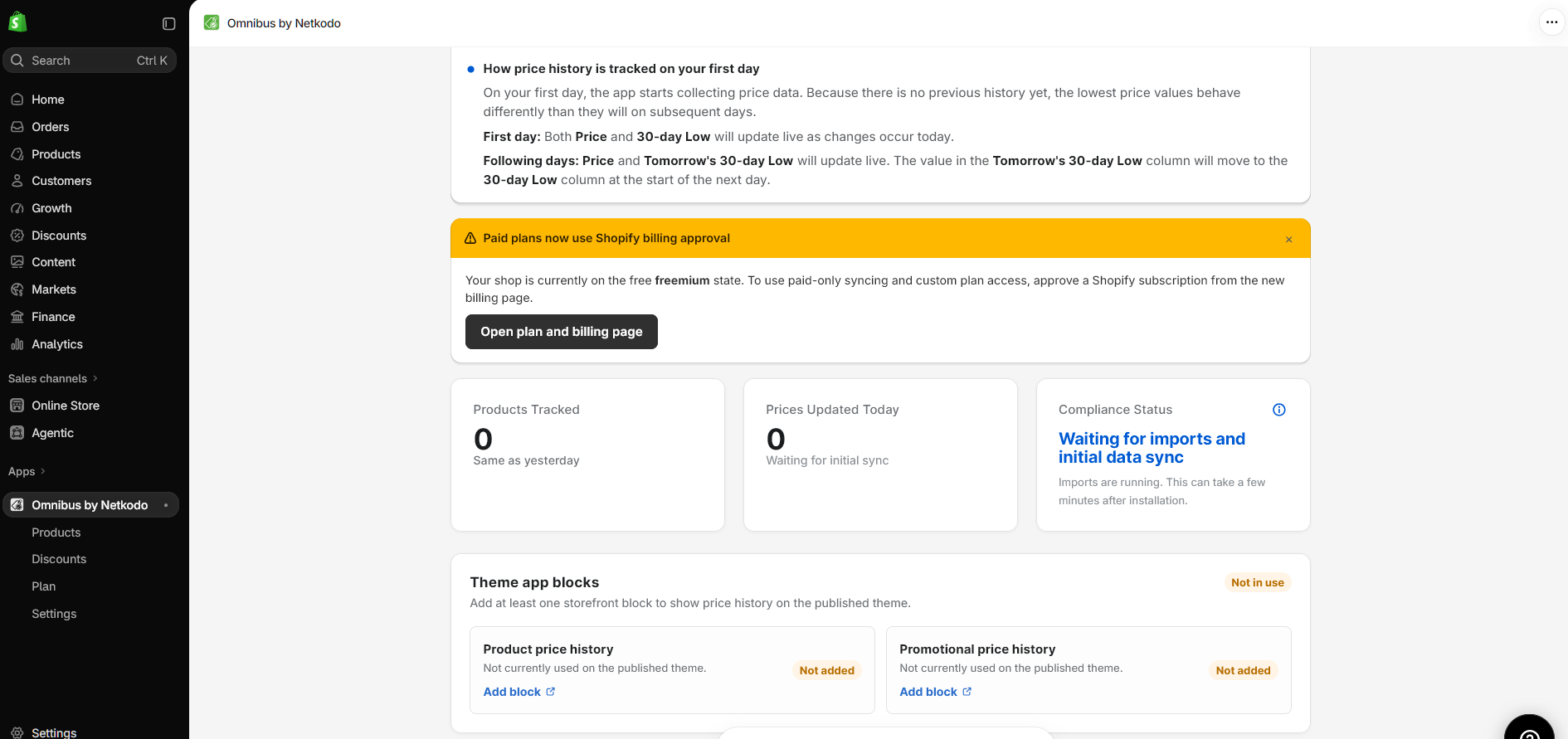
The dashboard shows whether product data is importing and whether either storefront block is present on the published theme. It also highlights newly detected Shopify discounts that need a decision.
These figures confirm that the catalog is being monitored and that current data is arriving.
During the first 30 days, variants are still collecting history. Once the full window exists, the app can show their compliant status.
Use the status area to see whether the Product price history or Promotional price history block is used on your published product template.
Review this prompt instead of assuming every Shopify discount should be part of the public Omnibus calculation.
Step 2 · Add the storefront message
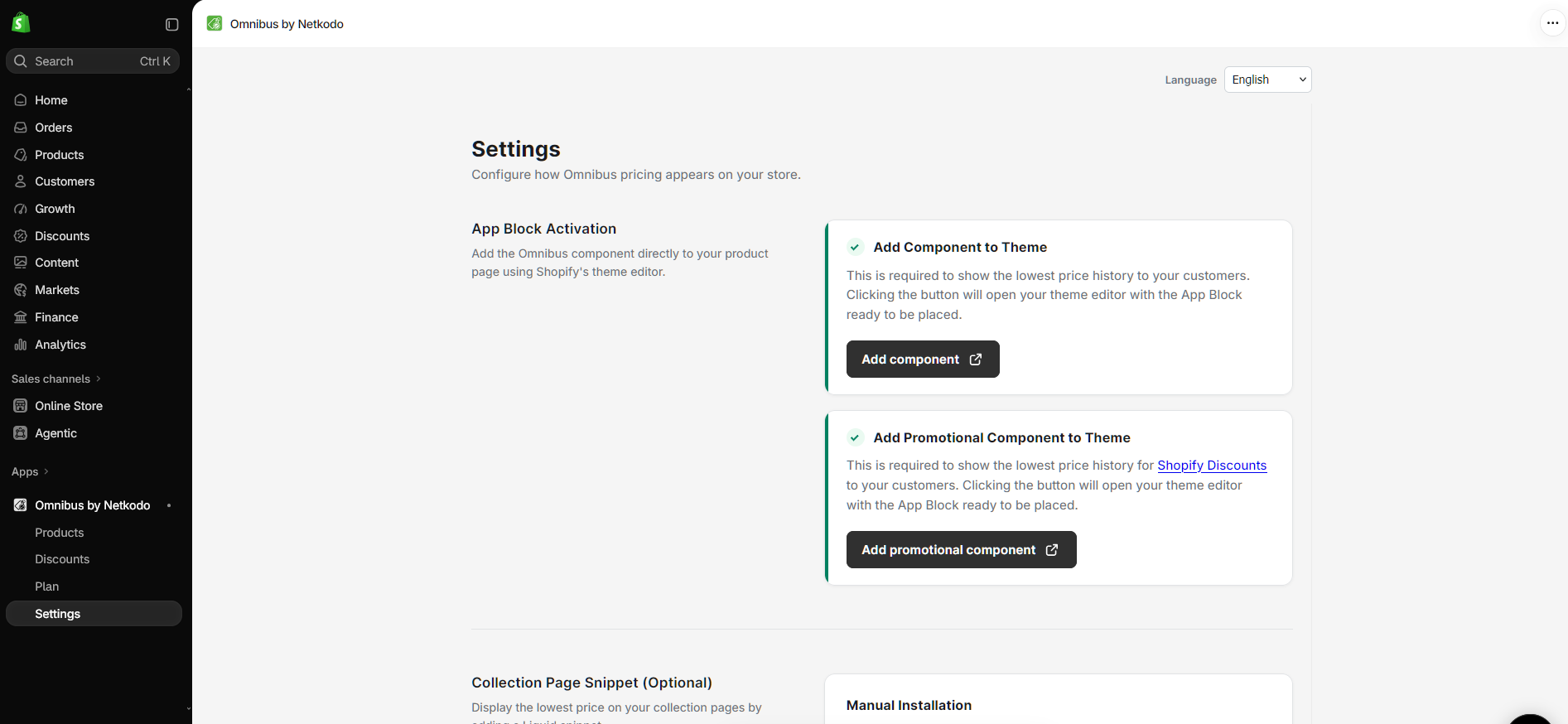
The app has two product-page blocks. Add the appropriate one from the dashboard or Settings by selecting Add block; Shopify opens the theme editor with the block ready to place on the main product section. Place it close to the product price, save, then preview a product.
| Use this block | When to use it | What to do |
|---|---|---|
| Product price history | Your promotion is expressed through the product or variant price, usually with a sale/compare-at-price presentation. | Add Product price history to the product template. The block can display the 30-day low for the selected variant. |
| Promotional price history | Your promotion is created with a Shopify Discount, such as an automatic discount or code-based promotion. | First create the Shopify Discount, then add Promotional price history to the product template and enable the discount in the app. |
Block settings
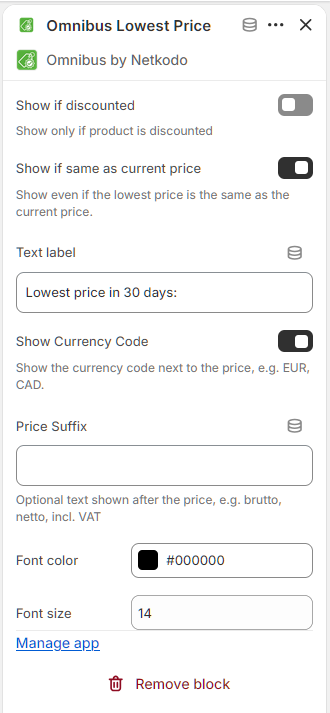
Use a clear customer-facing label, then adjust font size and colour to suit the product page. Keep the wording easy to understand in the storefront language.
Choose whether to show the store currency and, where useful, add a short suffix after the amount.
The Product price history block can be configured to show only when discounted and/or when the historical price differs from the current price.
For Shopify Discount promotions, you can also tailor padding, background, border, corner radius and optional discount percentage.
Select the block in Shopify’s theme editor to edit its available settings. The exact options depend on the block, but the standard setup gives merchants useful presentation control.
Step 3 · Review Shopify Discounts
New Shopify Discounts are not automatically included in the app’s Omnibus calculations. This protects the integrity of the public price history: a private, staff-only or otherwise non-public promotion should not automatically change the historical value you show customers.
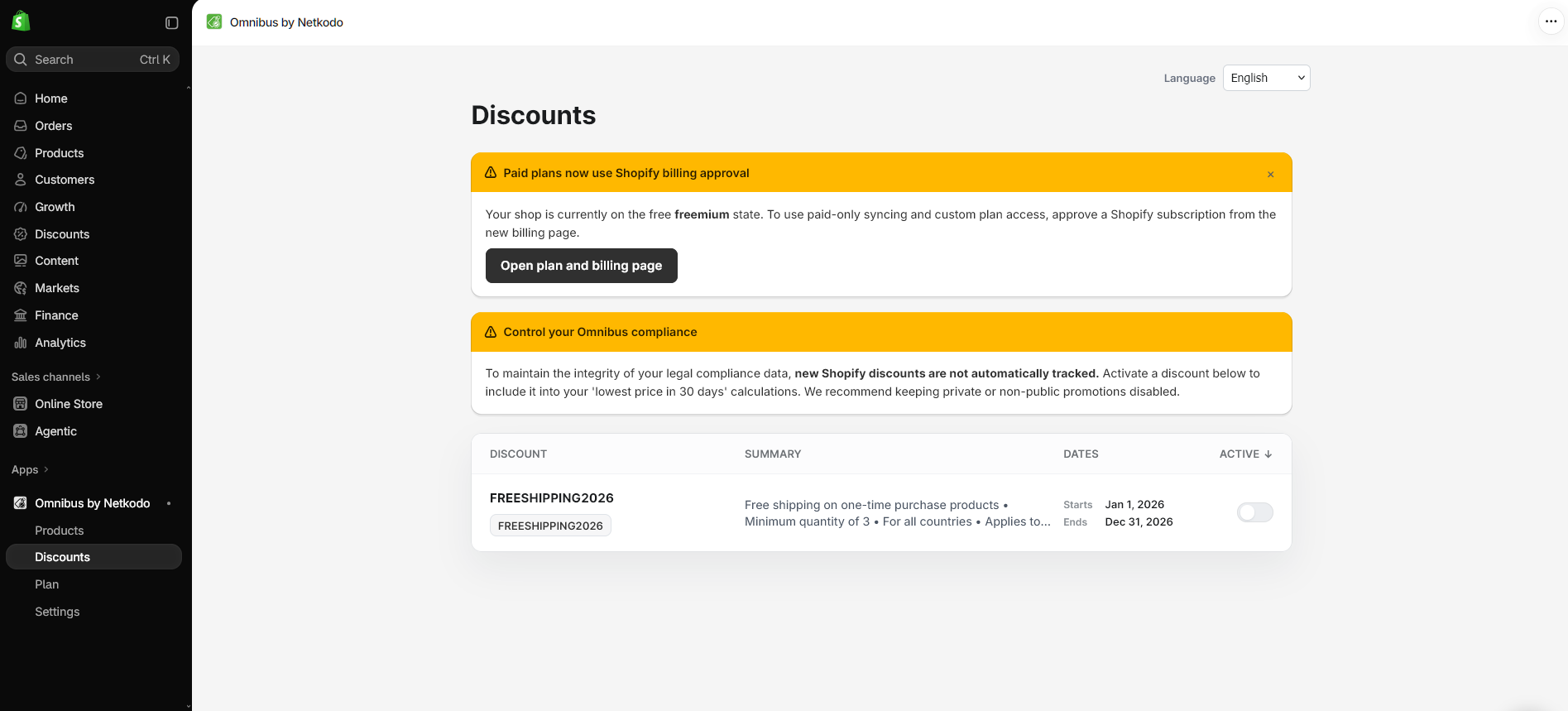
Create or update the promotion in Shopify Admin. Set its eligible products, customer conditions, start/end dates and any code or automatic-discount rules as you normally would.
Open Omnibus Price History → Discounts. Wait a couple of minutes after a Shopify change if it has not appeared yet; syncing is not instantaneous.
Inspect the discount’s summary and dates. Confirm it is a customer-facing promotion for which you want Omnibus information calculated and displayed.
Turn on “Enable [discount] in app”. The app will then include the eligible promotion in its calculation. Keep private or non-public promotions disabled.
Check the product page with the promotion active. Confirm the Promotional price history block appears where intended and displays the expected wording and amount.
Step 4 · Monitor products and variants
The Products page is your operational view of tracked catalog data. Search for a product, choose a market where applicable, expand a multi-variant product, and use the status to see whether the required history has been collected.
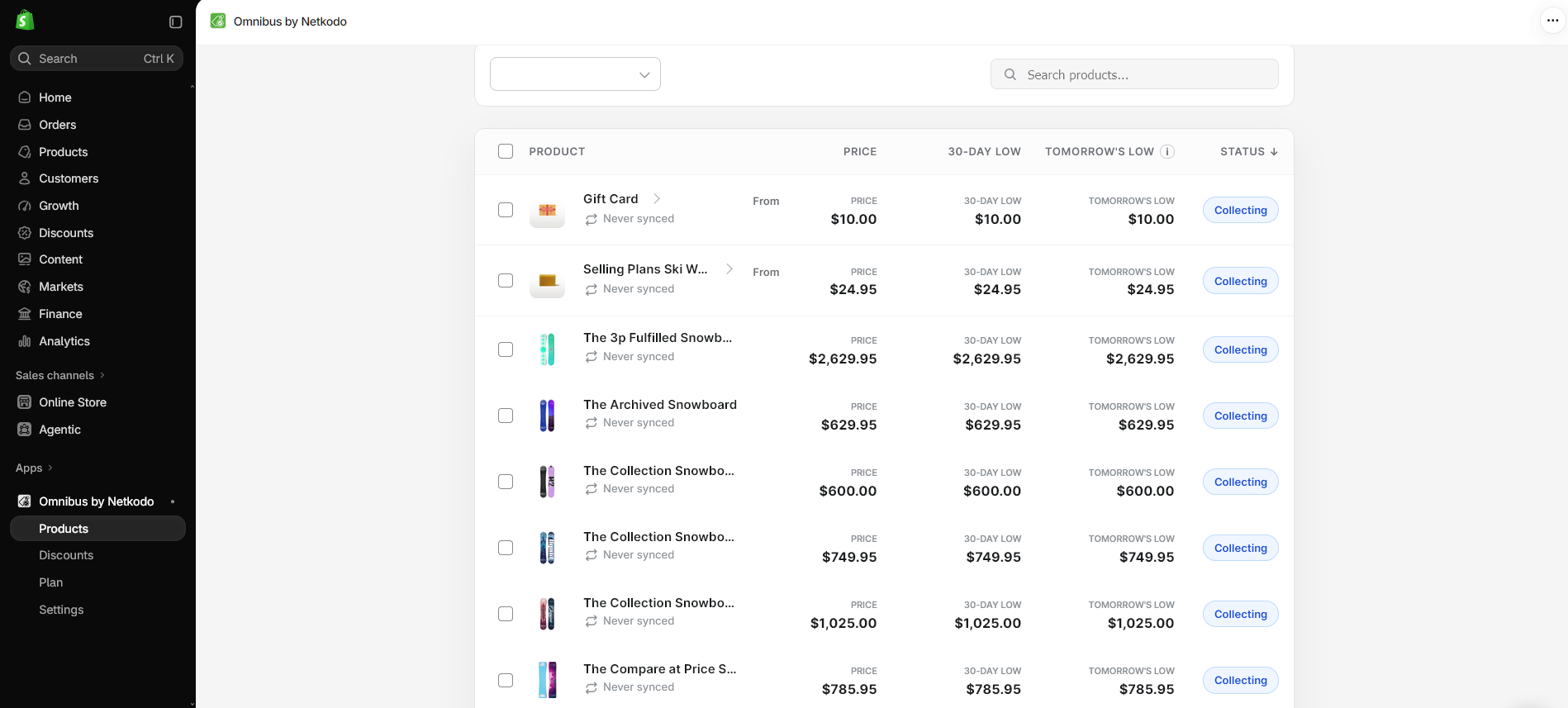
| Column | What it tells you | How to use it |
|---|---|---|
| Price | The current tracked price for the selected market. | Use it as a quick check after a planned product-price change. |
| 30-day Low | The current official historical low for the completed rolling window. | Use it as the key monitoring value for the regular price-history display. |
| Tomorrow’s 30-day Low | The lowest price captured today that will become part of the official value at the start of the next day. | Use it to understand a price change made today; it is not a separate customer-facing price. |
| Status | Collecting shows the number of recorded days; Compliant means the variant has a complete 30-day history. | Expand the product to check each variant independently, not just the parent product. |
The first-day rule
This distinction keeps the daily history accurate and avoids treating an in-day update as though it were already part of the next completed daily record.
Both Price and 30-day Low can update as changes occur that day because no earlier recorded history exists yet.
Price and Tomorrow’s 30-day Low update during the day. At the start of the next day, that captured value moves into 30-day Low.
The app has the full monitoring window for each continuously tracked variant and can label it compliant.
Markets, languages and variants
For a multi-market store, the app maintains market-aware pricing and the product block uses the visitor’s Shopify Markets country context. The app also supports localized block content. Your launch review should therefore cover more than the store’s default market and a single default variant.
Troubleshooting
Confirm that it was added to the product template of the published theme and saved. Then check the block’s visibility settings: it may be set to show only for discounted products or only when the historical price differs from the current price.
Allow a few minutes for Shopify changes to sync, then refresh the Discounts screen. Once it appears, review it and explicitly enable it in the app if it is a public promotion.
This is expected until it has 30 days of tracked history. Expand the product to see the status per variant and verify the app has remained installed while history is collected.
Select that market in Products, confirm the market-specific catalog price and review the storefront with that market/country context. Request a manual product refresh if you have just changed a market catalog price.
The standard blocks work with modern Shopify themes. For a custom display, collection-page placement, bundles, subscriptions, B2B or unusual promotion logic, contact Netkodo before publishing the change.
Ready to launch
Install Omnibus Price History, give the initial sync time to complete, add the right product-page block, and review each public Shopify Discount in the app. Before a major campaign, test the actual market, language and variant combinations your customers will use.
Install Omnibus Price History